Projects List
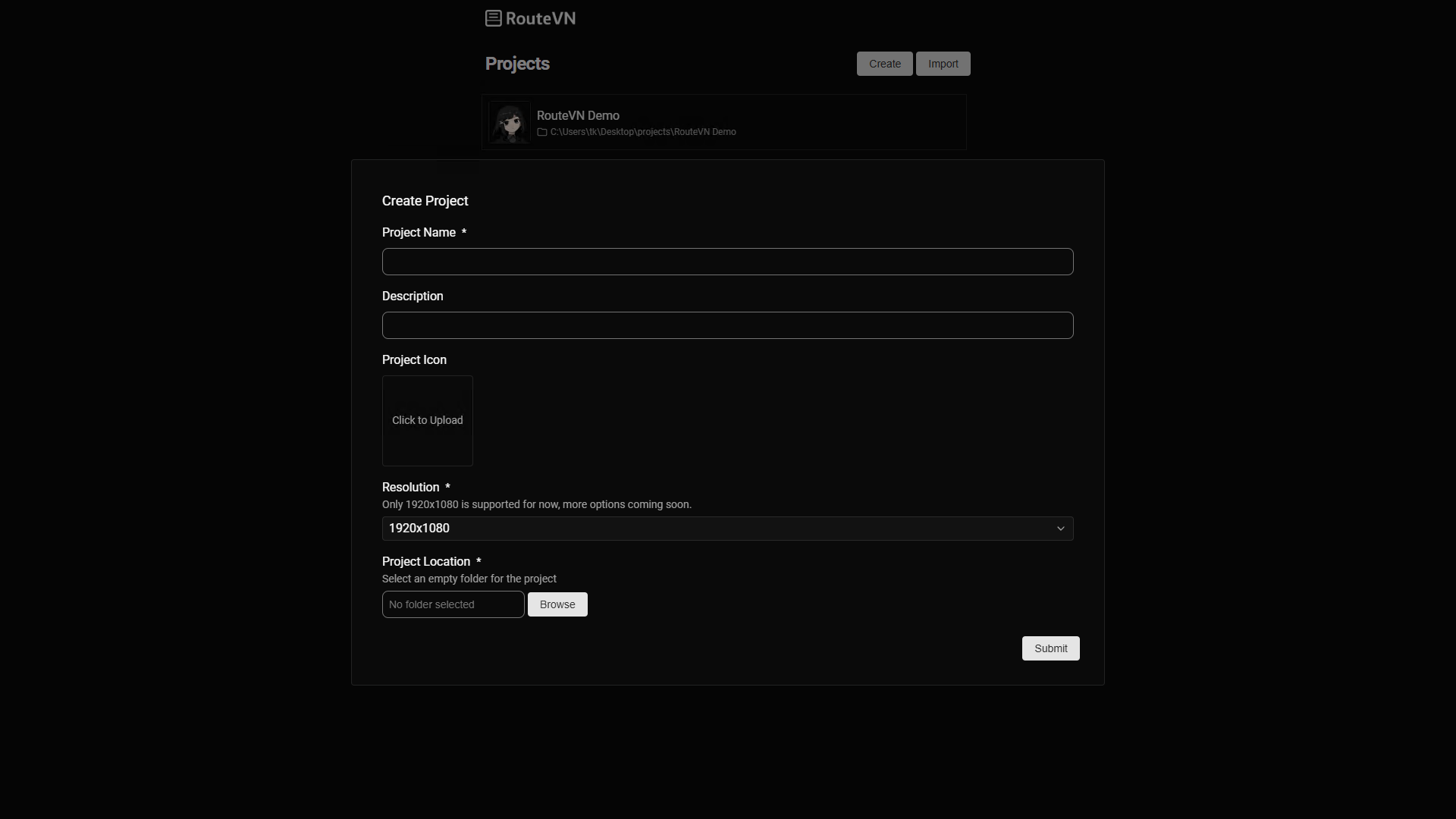
On the main page of RouteVN Creator, you will see a list of all projects You can either create a new project or import an existing project
Click any project in the list to start working with it.
Create a Project
Click the create button to create a project
You will be asked to fill the following fields:
- Project name (required)
- Project description
- Resolution (required)
- Icon
- Folder path (required)
Resolution
Screen resolution is a very consequential decision because it will dictate the size of all images that you will be using
Changing resolution later is tricky because it means you will need to change all your images as well
Currently the only supported resolution is 1920 x 1080 (FHD)
We will be adding more cusotmizable resolutions in the near future
Icon
This is just a icon to better identify the project. You can use any image that is not too small, there will be a image cropping step to make it into a square
Folder path
The folder path must be empty. We assume that you manually create this folder first. All data for the project will be saved under this folder.
Removing a project
From the project list, you can right click a project, and then select Remove
Important Removing the project will only remove it from the list. If you want to delete the files, you have to delete the whole folder manually
Importing a project
You can click the import button and select a folder path. After a successful import, the project will appear in the projects list.
You cannot import an already imported project.
Project Details
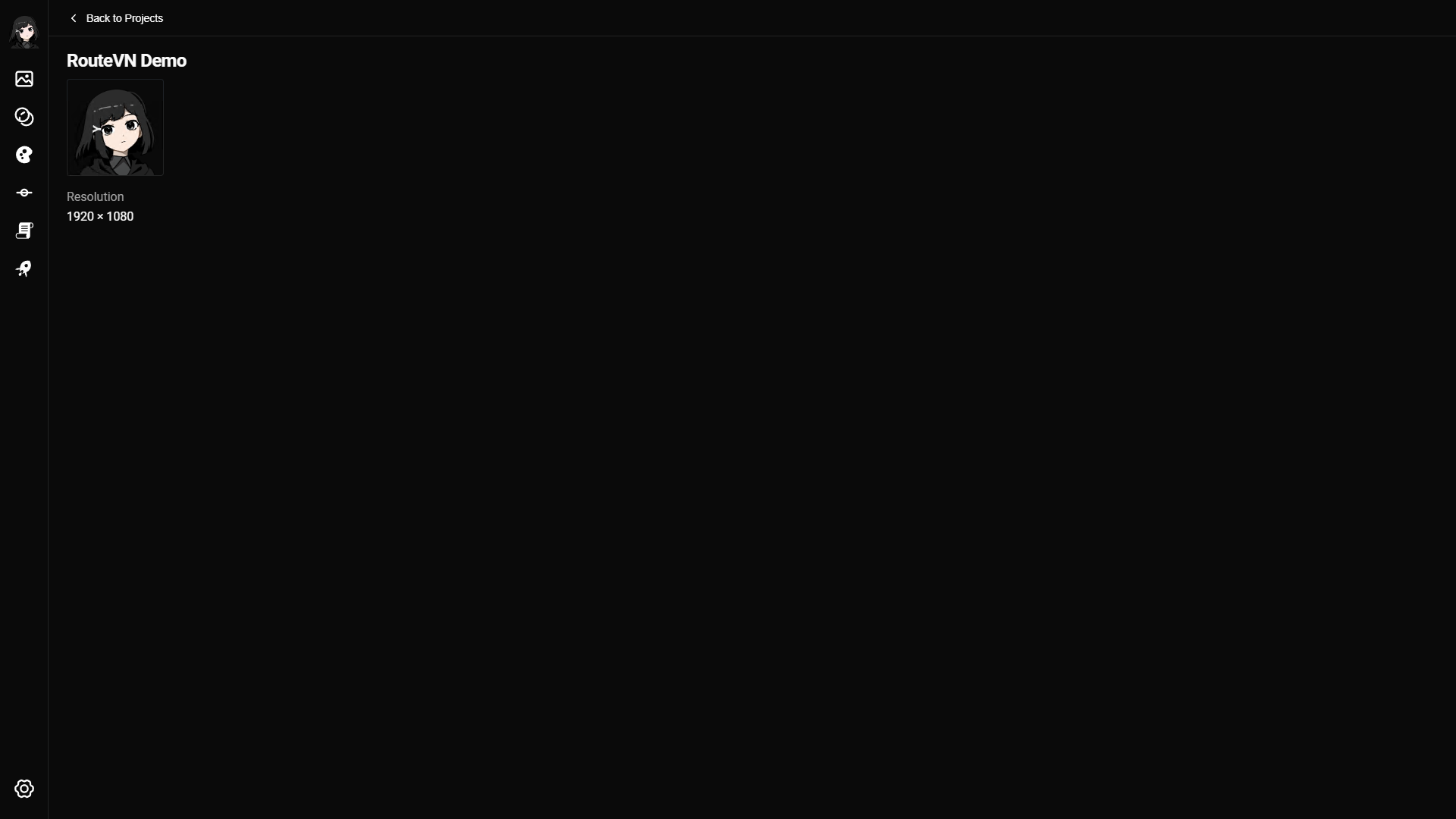
In the project page you click at the title or other fields to edit.
Troubleshooting
If you see an error dialog when trying to open a project, it usually means you are not using the latest version of RouteVN Creator.
- Upgrade to the latest version of RouteVN Creator.
- Try opening the project again.
- If it still fails, reach out to RouteVN support.