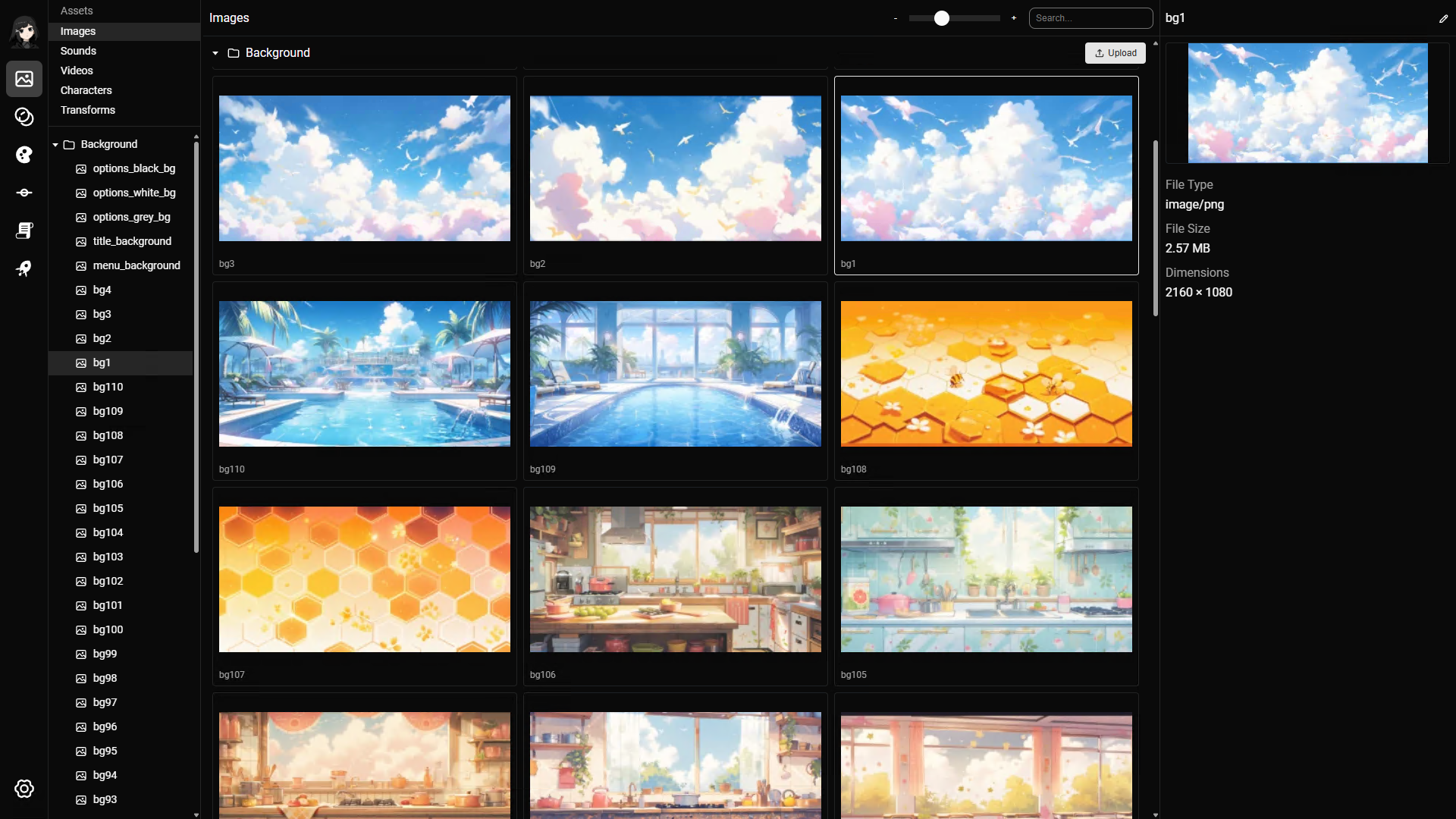
The images page is a flexible page to manage all visual assets including Background, Event CG, Visual Effects, UI assets.
Character sprites should not be added here. Use the character sprites section instead.
Image resolution
- Image dimensions should match or be relative to the project resolution.
- If your project resolution is 1920 x 1080, you should usually upload background and CG images with the same dimensions.
- You may sometimes want to upload a larger image when you intend to zoom into it. This is fine, but it is a more advanced use case.
- Raw images can be much larger than size-optimized images, even with the same dimensions.
- The visual difference is usually small. For large projects with many images, size-optimized images help reduce disk space, memory usage, and download bandwidth.
Supported image formats
The following file formats are supported:
pngjpg/jpegwebp
Upload images
You can upload single or multiple images at once.
There are 2 ways to upload:
- Click the upload button and select one or more images.
- Drag and drop images directly into the area below the folder.
When you upload multiple images, RouteVN Creator uploads them one by one. This is usually fast, but it can take time for large batches. Stay on this page and keep the application open until the upload finishes.
Updating an image
There is a significant difference between updating an existing image and uploading a new one.
If an image is already used in places such as layouts or section lines, replacing the image updates those references automatically.
If you upload a new image instead, you need to manually update the image reference in each layout or section line that uses it.
To update an image:
- Select an image.
- In the top right, click the image name or edit icon.
- Click the image to upload a new one.
Navigating the page
File explorer
Read the File Explorer docs for general navigation.
Previewing an image
- Double click an image to preview it in a larger dimension
- Click anywhere when the image is in preview to hide it
Organizing your images assets
The folder system is flexible and supports subfolders. A simple starting structure is:
- Background
- CG
- UI
- VFX
As the project grows, you can split assets by chapter:
- Background
- Chapter 1
- Chapter 2
- CG
- Chapter 1
- Chapter 2
You can also use chapters as the top-level folders:
- Chapter 1
- Chapter 2
Use the structure that works best for your project.
Usages
Images are used in the following places:
Keyboard shortcuts
The Images page inherits the general File Explorer keyboard shortcuts.
Enter: Opens the preview for the selected image.
When previewing an image:
Esc: Closes the image preview.↑or←: Shows the previous image.↓or→: Shows the next image.